中文版本
I left for a four-hour train ride and my AI coding agent kept working. On my Mac at home, controlled from my phone.
The setup took 20 minutes. Here’s what I learned.
The Problem#
Claude Code runs in a terminal. Terminals live on your computer. When you walk away from your computer, the terminal goes with it. For a tool that can autonomously write code, review files, and run tests, being tethered to a desk feels like a design flaw.
I had a specific need: I was heading to Jinan for a couple of days, but my Claude Code session had context I didn’t want to lose. I wanted to check on it from my iPad mini on the train, approve a few changes, maybe kick off a new task.
The obvious answer is SSH. But vanilla SSH from a phone has problems. Your IP changes when you switch from WiFi to cellular. Your connection drops when you walk through a tunnel. And finding your home Mac’s IP from outside your network means dealing with dynamic DNS or port forwarding on your router.
I wanted something that just works.
The Stack#
Four pieces, all free or cheap:
Tailscale (free) gives every device a stable IP address. It’s a mesh VPN built on WireGuard. Install it on your Mac and your phone, log in with the same account, and they can see each other. No port forwarding, no dynamic DNS, no firewall rules. Your Mac gets an address like 100.124.178.101 that works from anywhere in the world.
tmux (free) keeps your terminal session alive when you disconnect. Start Claude Code inside tmux, close your laptop, fly to another country, SSH back in, type tmux attach, and you’re exactly where you left off. The AI agent’s full context is preserved.
Mosh (free) replaces SSH for mobile connections. It uses UDP instead of TCP, which means it handles network switches gracefully. Walk from WiFi to cellular, and Mosh reconnects silently. No “broken pipe.” No lost session. For a phone on the move, this matters.
Echo ($2.99, iOS) is the client that ties it together. It’s a modern SSH and Mosh client for iPhone and iPad, built on the Ghostty terminal engine. Clean UI, hardware keyboard support on iPad, and it just feels right for terminal work on a small screen.
Setting It Up#
On the Mac:
# Install Tailscalebrew install --cask tailscale
# Install Moshbrew install mosh
# Enable SSH access# System Settings → General → Sharing → Remote Login → On
# Allow Mosh through the firewallsudo /usr/libexec/ApplicationFirewall/socketfilterfw --add /opt/homebrew/bin/mosh-serversudo /usr/libexec/ApplicationFirewall/socketfilterfw --unblockapp /opt/homebrew/bin/mosh-server
On your phone or iPad: install Tailscale and Echo from the App Store. Log into Tailscale with the same account. In Echo, create a new server with your Mac’s Tailscale IP, your username, and select Mosh as the protocol.
That’s it.
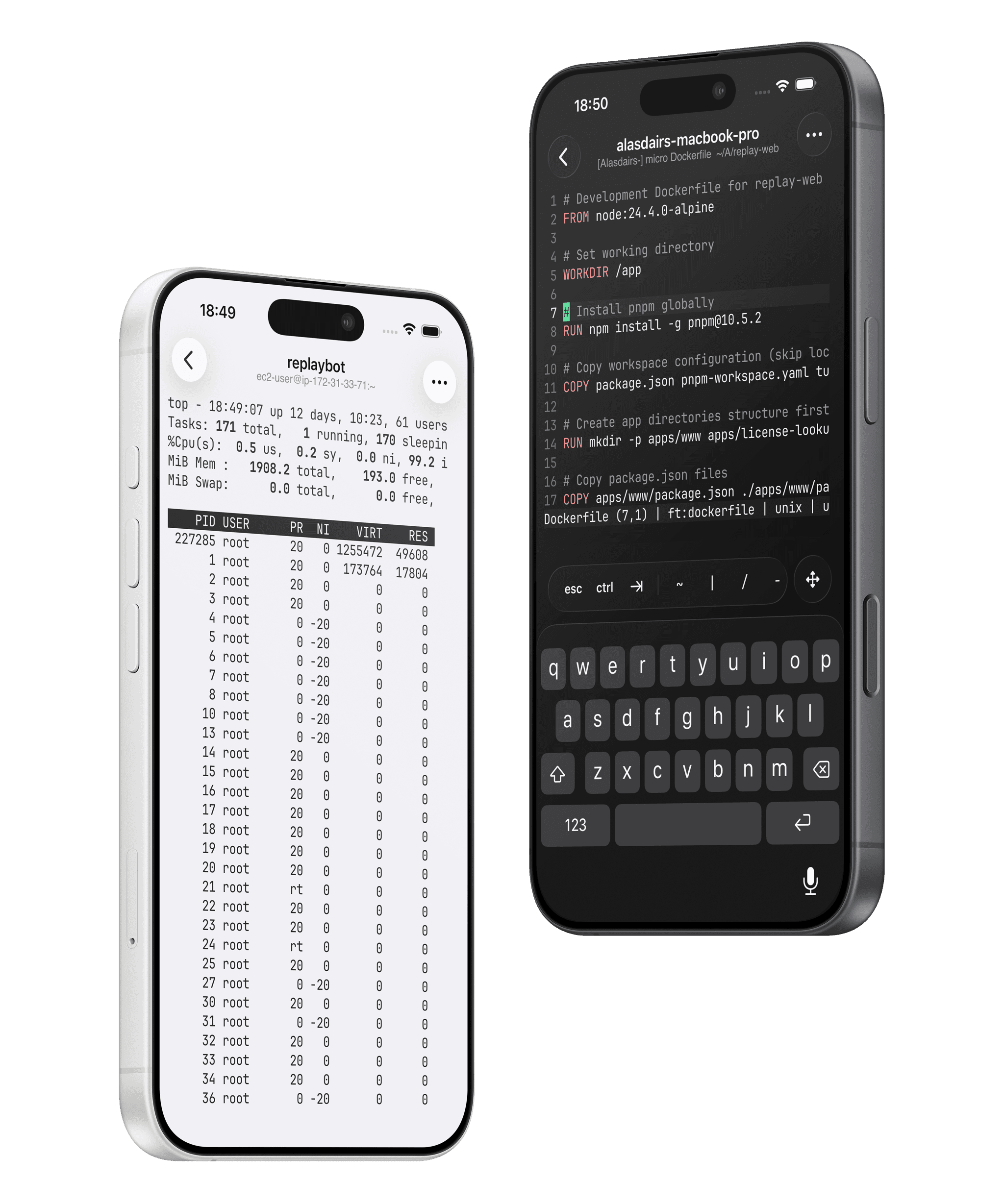 Image courtesy of Echo by Replay Software
The Workflow#
The daily pattern is simple:
- On your Mac, start Claude Code inside tmux:
tmux new -s claude - Work normally. When you leave, just leave. Don’t even detach.
- From your phone, open Echo, tap your server, and run
tmux attach.
You’re now looking at exactly the same terminal. Claude Code’s full conversation context is there. You can review what it did, approve changes, or give it new instructions.
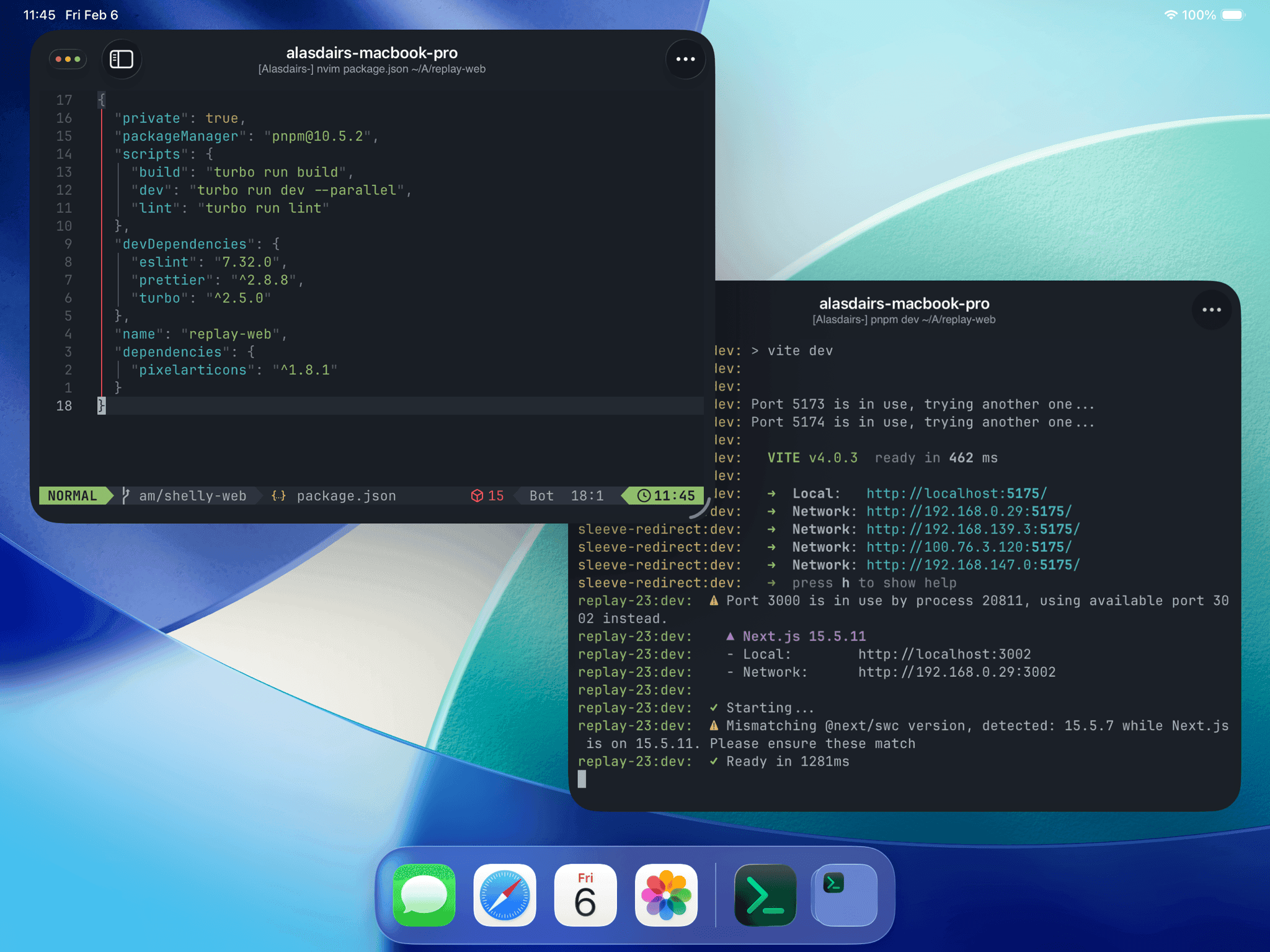 Image courtesy of Echo by Replay Software
When you’re done, detach with Ctrl+B d. The session stays alive on your Mac. Come back to your desk, open a terminal, tmux attach again. Seamless.
One detail: if both your Mac and your phone are attached to the same tmux session simultaneously, the window shrinks to fit the smallest screen. You’ll see dots filling the right side. The fix is simple: detach from one device before attaching from the other.
The Gotchas#
I hit three problems during setup. You probably will too.
macOS Remote Login is off by default. SSH connections get “Connection refused” until you flip this switch in System Settings. It’s buried under General → Sharing, and it’s not obvious that this is the SSH server toggle.
The firewall blocks Mosh. macOS has a built-in application firewall that silently drops Mosh’s UDP packets. SSH works fine (it uses TCP port 22, which Remote Login opens automatically), but Mosh needs UDP 60000-61000. The socketfilterfw commands above fix this, but you need sudo.
iOS only allows one VPN at a time. If you use a proxy like Clash on your phone, you can’t run Tailscale simultaneously. You have to toggle between them. On your Mac this isn’t a problem, since Tailscale only routes its own 100.x.x.x traffic and doesn’t interfere with HTTP proxies.
Why This Matters#
AI coding agents are getting good enough that you don’t always need to watch them work. Claude Code can research a topic, draft a document, clean up a codebase, and write tests, all while you’re doing something else. But the interaction model still assumes you’re sitting at a desk.
This setup breaks that assumption. You can start a task in the morning, commute to work, and check in from your phone. You can approve a pull request from a coffee shop. You can kick off a research task before bed and review results over breakfast.
The tools are boring. SSH has existed for decades. tmux is older than most JavaScript frameworks. Tailscale just makes the networking invisible, and Echo makes the phone usable as a terminal.
To be honest, the phone is still a compromise. You can approve changes fine, but writing a detailed prompt on a phone keyboard is slow. For anything longer than a sentence, I wait until I’m back at a real keyboard. This setup is for checking in and steering, not for deep work.
Push Notifications with Bark#
The original setup had one friction point: I had to open the terminal to check if Claude Code needed my input. Polling, not reacting. The fix is push notifications.
Bark is an open-source iOS push notification service. Install the app, get a URL endpoint, and any HTTP call to that endpoint lands as a notification on your phone.
Claude Code has a hooks system. The Notification event fires when the agent finishes a task or needs user input. I wrote a small shell script that catches this event and forwards it to Bark, but only when running inside an SSH session. Sitting at your Mac? No push. Remotely connected from your phone? You get notified.
The script at ~/.claude/hooks/notify-bark.sh:
#!/bin/bash# Only sends when running inside an SSH session[ -z "$SSH_CONNECTION" ] && exit 0
BARK_URL="https://api.day.app/YOUR_BARK_KEY"
payload=$(cat)hook_event=$(echo "$payload" | jq -r '.hook_event_name // empty')message=$(echo "$payload" | jq -r '.["last-assistant-message"] // .message // .summary // empty')cwd=$(echo "$payload" | jq -r '.cwd // empty')
title="Claude Code"if [ -n "$cwd" ]; then    title="Claude Code - $(basename "$cwd")"fi[ -z "$message" ] && message="${hook_event:-Event}"body=$(echo "$message" | head -c 200)
encoded_title=$(python3 -c "import urllib.parse; print(urllib.parse.quote('''$title'''))")encoded_body=$(python3 -c "import urllib.parse,sys; print(urllib.parse.quote(sys.stdin.read()))" <<< "$body")
curl -s -o /dev/null "$BARK_URL/$encoded_title/$encoded_body?group=claude-code" &
Register it in .claude/settings.json:
{ "hooks": { "Notification": [ { "matcher": "", "hooks": [ { "type": "command", "command": "~/.claude/hooks/notify-bark.sh", "timeout": 10 } ] } ] }}The $SSH_CONNECTION check is what makes this work. This environment variable exists only in SSH sessions. Local terminal sessions don’t have it. So the same hook config works everywhere without you toggling anything.
Now the workflow is truly reactive: start a task, walk away, get a ping when it’s done.